 Fake Call
 FAKE CALL · BY ZRINDY
A call, right on cue.
A fake incoming call simulator for iPhone and Android. Choose a caller, voice, ringtone and delay for a lighthearted interruption or a call rehearsal.
Free to download · Contains ads · Optional VIP purchases
A simulation on your device. It never places or receives a real phone call.
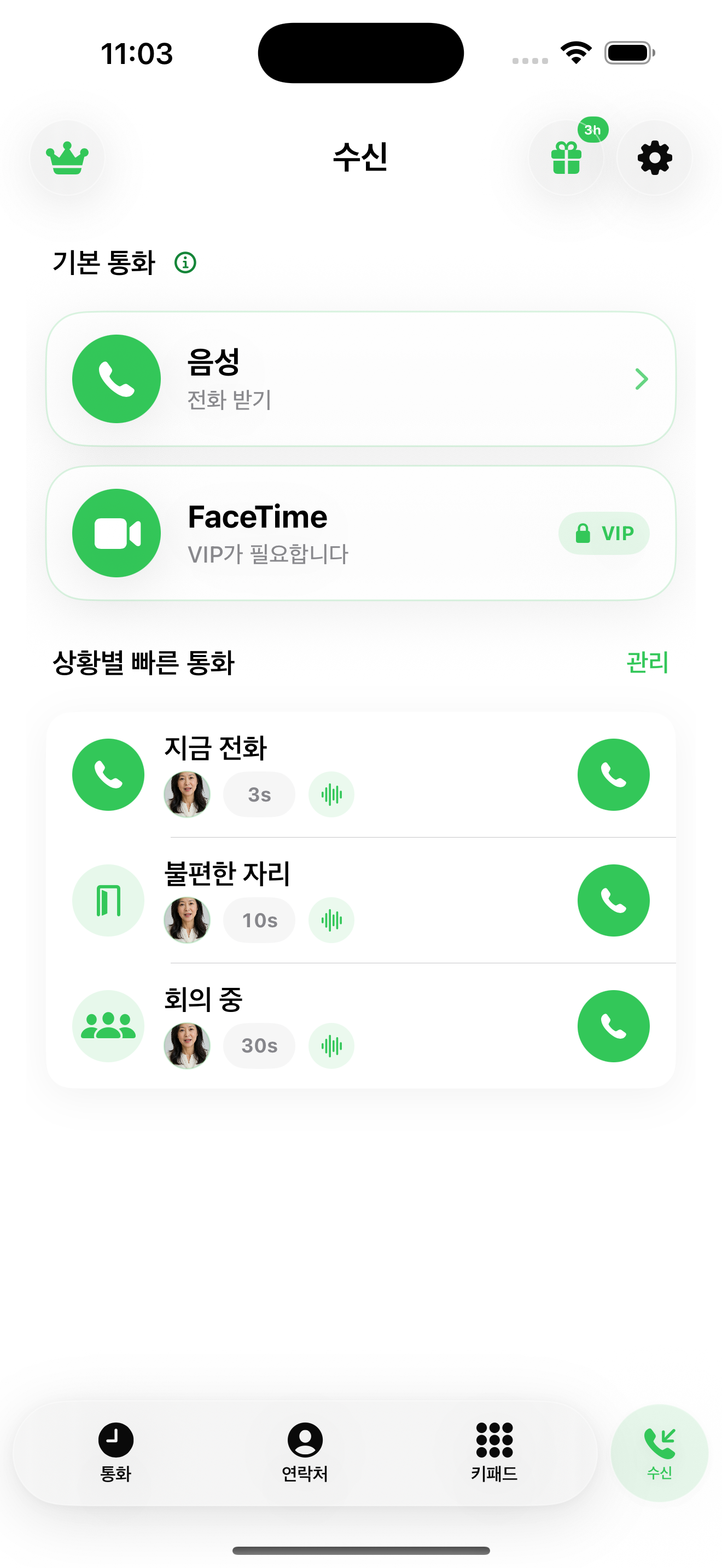
Make room for a little interruption.
An awkward moment
Set a short delay before a situation where you may want a polite break. Try the sound and timing on your own device first.
A harmless joke
Choose a fictional caller for a playful moment with friends. No call is sent to their phone.
A scene to rehearse
Practice answering, speaking and ending a call for a presentation, performance or call-screen demo.
From setup to ringing in three steps.
Choose the caller
Pick an example caller or customize the name and photo. Select the available voice and ringtone you want to hear.
Set the timing
Start right away or choose a delay. For your first attempt, keep the app open and use a short delay.
Answer and try it
Answer the simulated incoming screen, listen and end the call. Save a quick-call preset if you want to reuse the setup.
Choose your phone. Check its limits.
iPhone
Customize the caller and incoming screen, schedule a call and reuse presets. Supported widgets, the Action Button and the Apple Watch companion offer additional quick-launch options; availability and VIP access vary by feature.
Android
Customize the caller, voice, ringtone, timer and incoming-call style. The app also offers an Android-style keypad, simulated history and supported widget actions. Permissions and background behavior vary by device.
When your phone is locked, notifications, Focus or Do Not Disturb, sound settings and background restrictions affect delivery. An in-app call screen is different from a system notification. Fake Call cannot contact emergency services and should not be relied on for personal safety.
Start with a basic voice call.
Try the basic simulation before deciding on VIP. The free experience includes advertising. VIP removes ads and adds premium options such as voices and customization; the available features differ between iPhone and Android. Check locked items and the current purchase screen for the exact features, local price, renewal period and any trial eligibility.
Questions before your first call
Does Fake Call call another person or change my caller ID?
No. Fake Call displays a simulated call on your own device. It does not connect a cellular or FaceTime call, call another person, or spoof a telephone caller ID.
Can I schedule a fake incoming call?
Yes. Choose a delay in the app, then test it with the app open. Lock-screen and background delivery depend on notifications, device settings and operating-system restrictions.
Can I use my own voice or audio?
The apps offer caller voices and custom audio options. Recorded or imported audio and other premium choices may require VIP. Check the options available on your platform before purchasing.
Is Fake Call free?
It is free to download, with advertising and optional in-app purchases. Some voices, customization and quick-launch actions require VIP. Prices and subscription or one-time options are shown in your local store and in the app.
What should I check if the call does not ring?
Try a basic voice call with the app open. Check the chosen ringtone and device volume, then notification permission and Focus or Do Not Disturb settings. The setup guide explains the differences between in-app and locked-screen behavior.
Try your first simulated call.
Free to download · Contains ads · Optional VIP purchases