

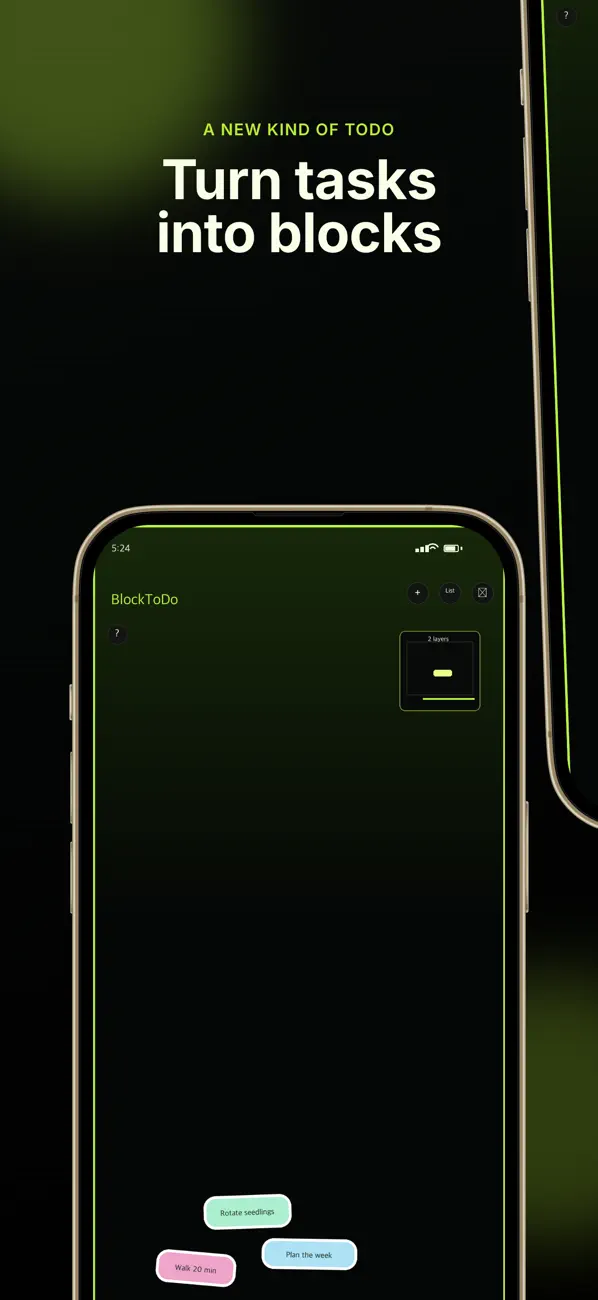
BlockToDo displays tasks as falling blocks. Switch between the visual view and a conventional list to suit the task.
Add and complete a task
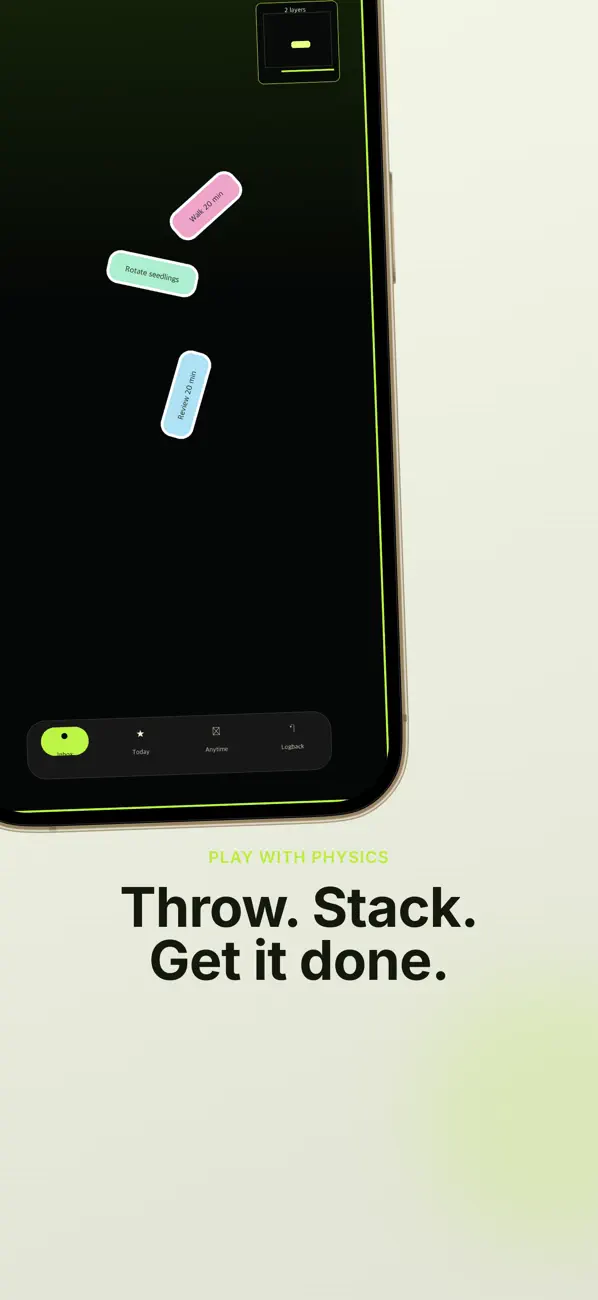
Organize work into Inbox, Today and Anytime.
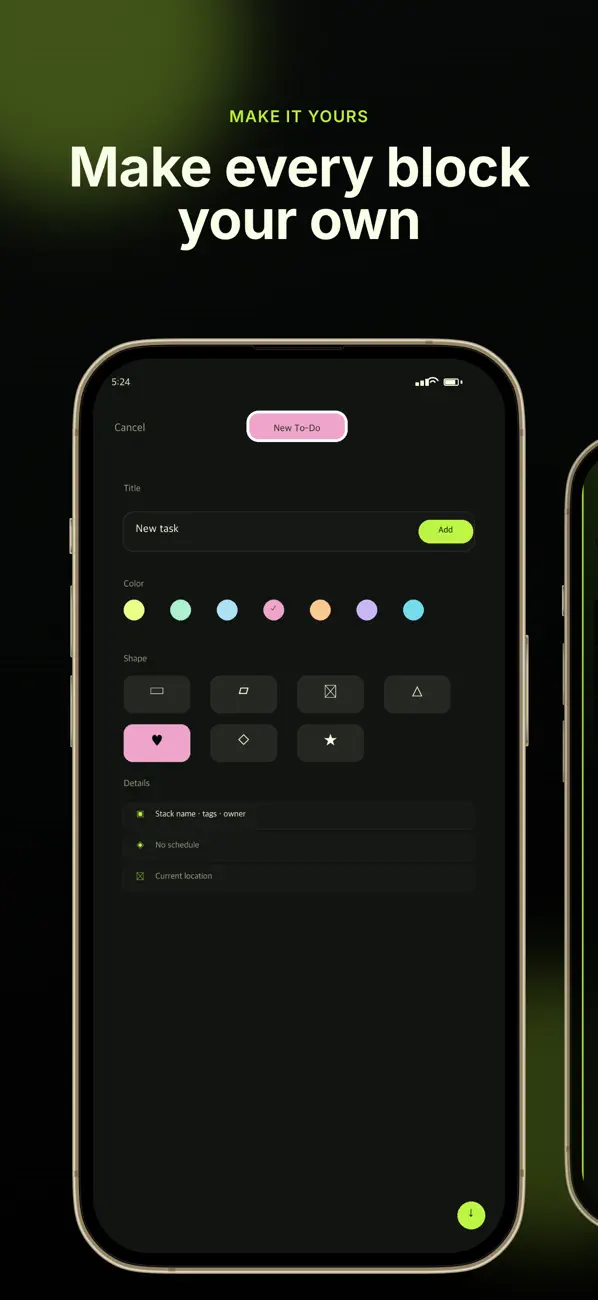
- Create a task and choose a color and shape to distinguish it.
- Tap a block to edit it; press and hold to fill the completion gauge.
- Find an accidentally completed task in Logback and restore it.
Details and repeating tasks
Use deadlines, repetition, checklists, notes and photos to add detail. For a crowded board, use the minimap or list mode to find the task.
Reminders, widgets and sync
Widgets and Apple Watch provide another way to view tasks. Data is local by default, with optional private iCloud sync. If reminders are missing, check both app settings and iOS notification permission.
If a task appears to be missing
Check Inbox, Today, Anytime and completed-task history. On another device, verify that iCloud sync is enabled and that the Apple account matches.
Official app previews
These images come from the public App Store listing. Screens can differ by language, device and app version.
Common questions
Can I use a list instead of blocks?
Yes. List mode provides another way to manage tasks.
Can I undo completion?
Find the task in Logback’s completed history and restore it.
Does your screen look different?
The app changes over time. Include your app version and the steps you tried when contacting support. Do not send passwords, payment details or API keys.
dev@zrindy.com