

Fake Call by ZRINDY LLC is a simulation on your own phone. It can provide a lighthearted interruption, help rehearse a scene or demonstrate a call screen. It does not dial another person, receive a real cellular or FaceTime call, or change a telephone caller ID. Start with the app open so you can check the caller, sound and timing before trying a delayed call with the phone locked.
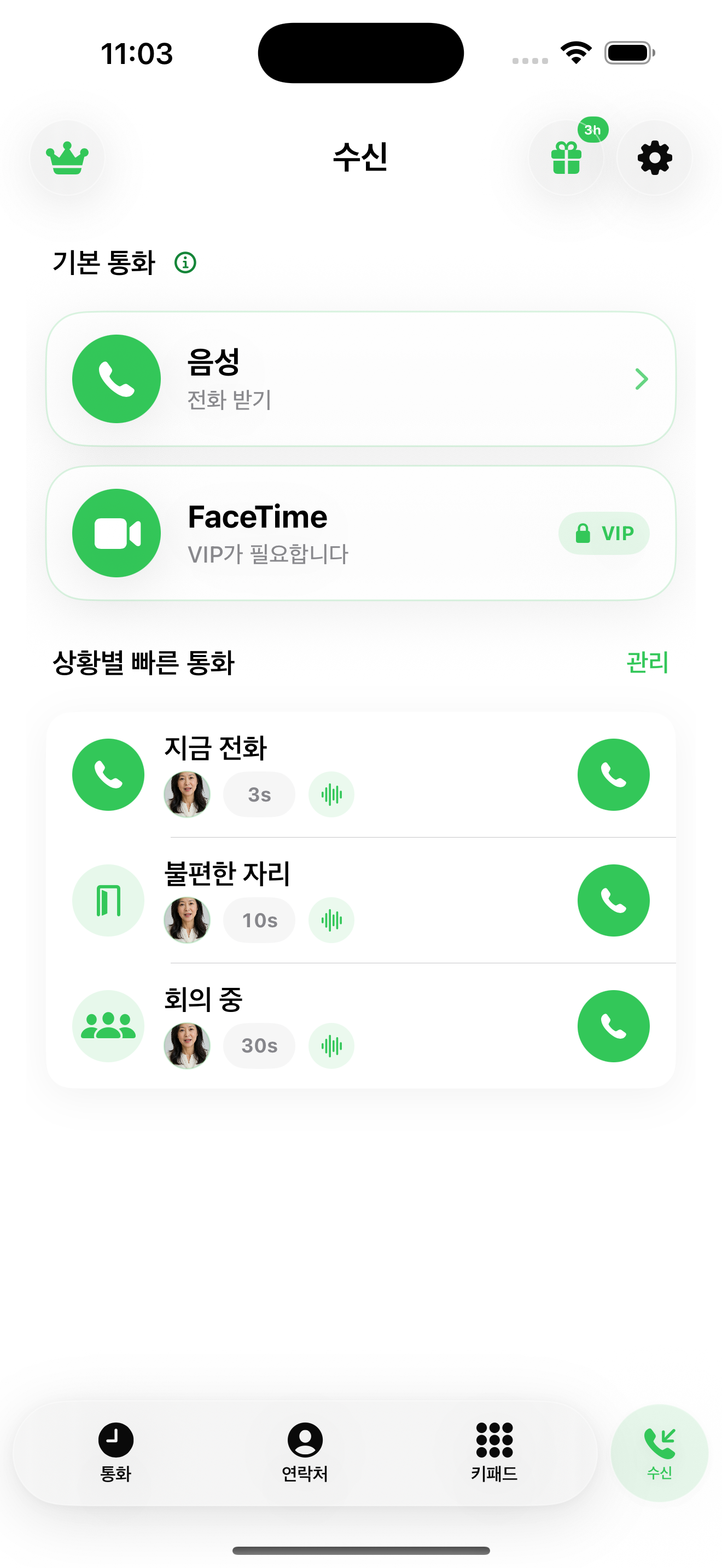
Set up your first call on iPhone
Use a short delay for your first attempt. An incoming screen inside Fake Call and an iOS notification shown while the phone is locked are different experiences.
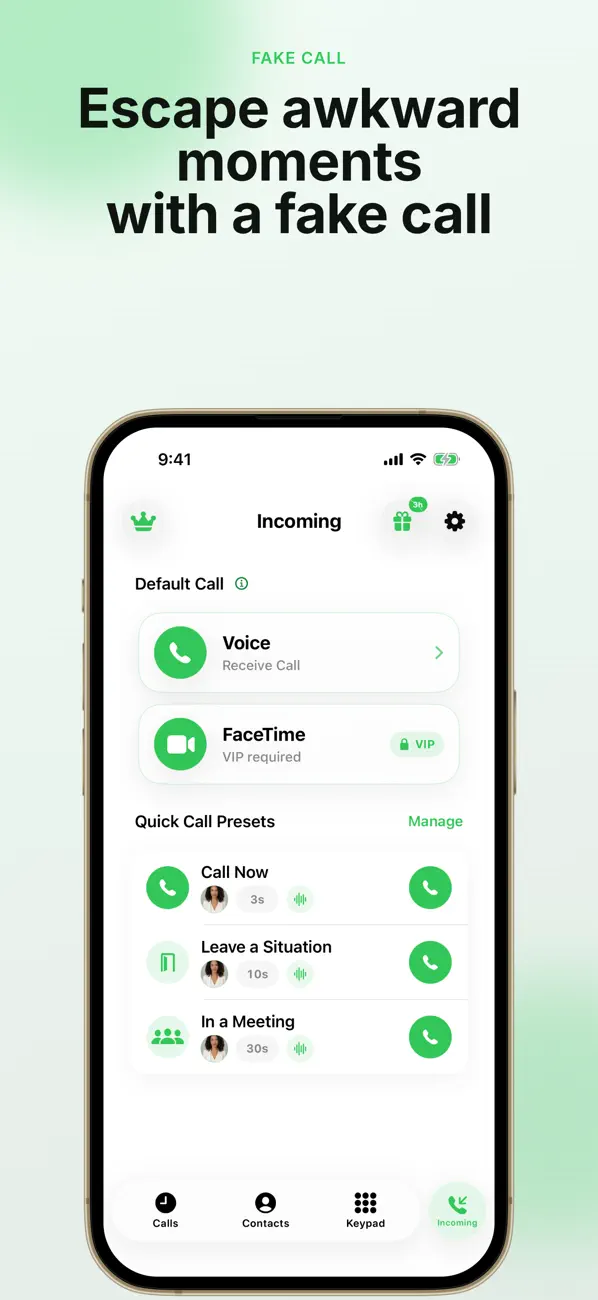
- Open Incoming, then Manage beside Default Call.
- Choose the caller, delay and ringtone. Check the selected caller voice and volume.
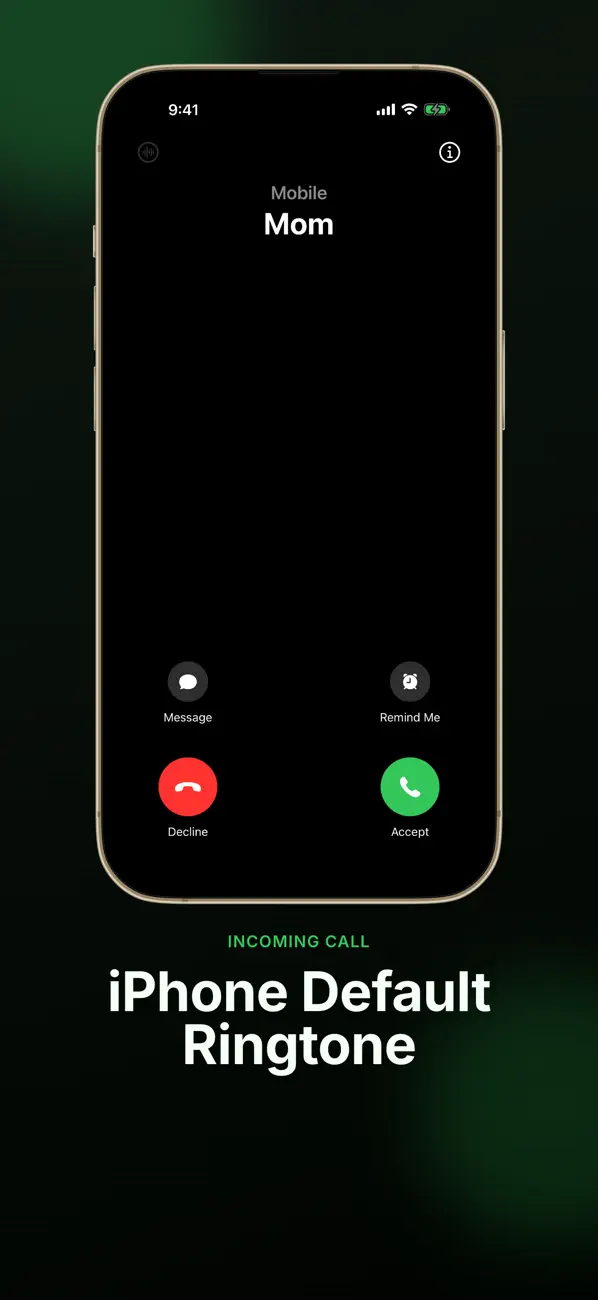
- In Incoming Call Screen, preview the available Accept/Decline or Slide to Answer style.
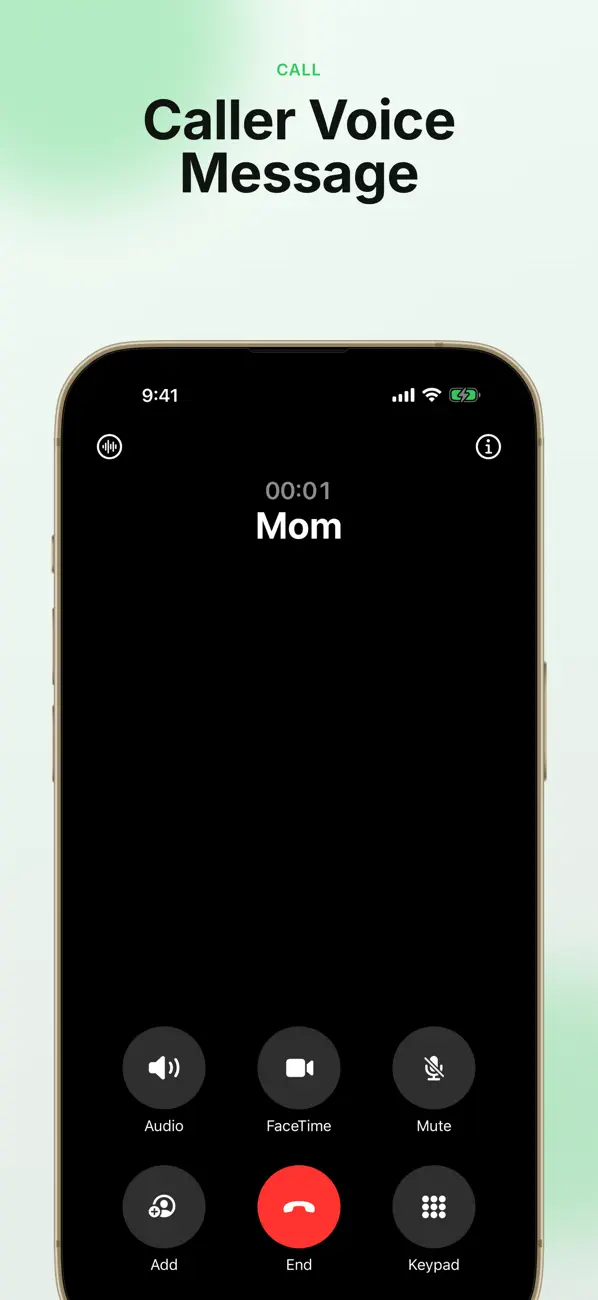
- Return to Incoming and tap Voice. Keep Fake Call open while you wait, then answer and end the simulated call.
Start on Android
Install Fake Call: Prank Simulator from Google Play, then choose the caller, voice, ringtone and timer. Start with a short delay and keep the app open. Android menu names differ from the iPhone example above. Check the permission prompts shown by the app before testing a locked-screen or background call; notification and background behaviour can differ between phone manufacturers.
Save a setup you want to reuse
Quick-call presets help you reuse a caller and timing instead of configuring them again. On iPhone, the preset and Default Call settings are managed separately.
- After your first completed call, use the save-preset prompt if it appears and choose a recognizable name.
- To change an iPhone preset later, open Manage beside Quick Call Presets. Check the caller, delay and incoming-call screen, then save.
- Run the preset with a short delay to confirm the saved setup before relying on the timing.
Choose a setup for the situation
For a polite break from an awkward moment, choose a delay that gives you time to put the phone down. For a harmless joke, use a fictional caller and keep the moment comfortable for everyone. For a presentation or acting rehearsal, keep the app visible and repeat the answering and ending sequence. These are examples of use, not promises of safety or guaranteed background delivery.
Understand Apple Watch and locked iPhone behaviour
The Apple Watch companion sends a request to the paired iPhone and requires Premium for its call-launch features. Open the iPhone app first and check permissions and connectivity. A collapsed iOS notification is not the full in-app call screen; available actions may require expanding the notification. Silent mode, Focus, notification permissions, the device connection and operating-system background restrictions can affect sound and delivery. Test the exact state you intend to use. Fake Call cannot contact emergency services.
Official app previews
These images come from the public App Store listing. Screens can differ by language, device and app version.
Common questions
The call does not ring. What should I check?
Run a basic voice call with Fake Call open. Check the selected ringtone and device volume. If it only fails when locked, check notification permission, sound and Focus or Do Not Disturb settings. On Android, also review the device’s app background restrictions. If it only fails from Apple Watch, open both apps and check the connection.
Does the app replace my phone’s real incoming-call screen?
No. Fake Call provides its own simulation. It does not control every system call banner or lock-screen behaviour. Test the app screen and notification behaviour separately.
Can I use a personal recording?
Recorded or imported audio is available through the app’s custom audio options and may require VIP. Check what is available on your platform. Use audio you have permission to use.
What information helps support investigate a problem?
Send the app version, phone model, operating-system version, how you started the call, whether the phone was locked, and the steps that reproduce the issue. For Watch issues, include the watchOS version. Hide real contact details and payment information in any screenshots.
Does your screen look different?
The app changes over time. Include your app version and the steps you tried when contacting support. Do not send passwords, payment details or API keys.
dev@zrindy.comThis guide was translated from the developer’s source text. If a step is unclear, compare the original or contact support. Read the original