

FolderCam organizes work photos and documents into a folder selected before capture. This guide describes the published iOS version; Android screens and available features can differ.
Capture into your first folder
A folder for each job or site keeps related captures together.
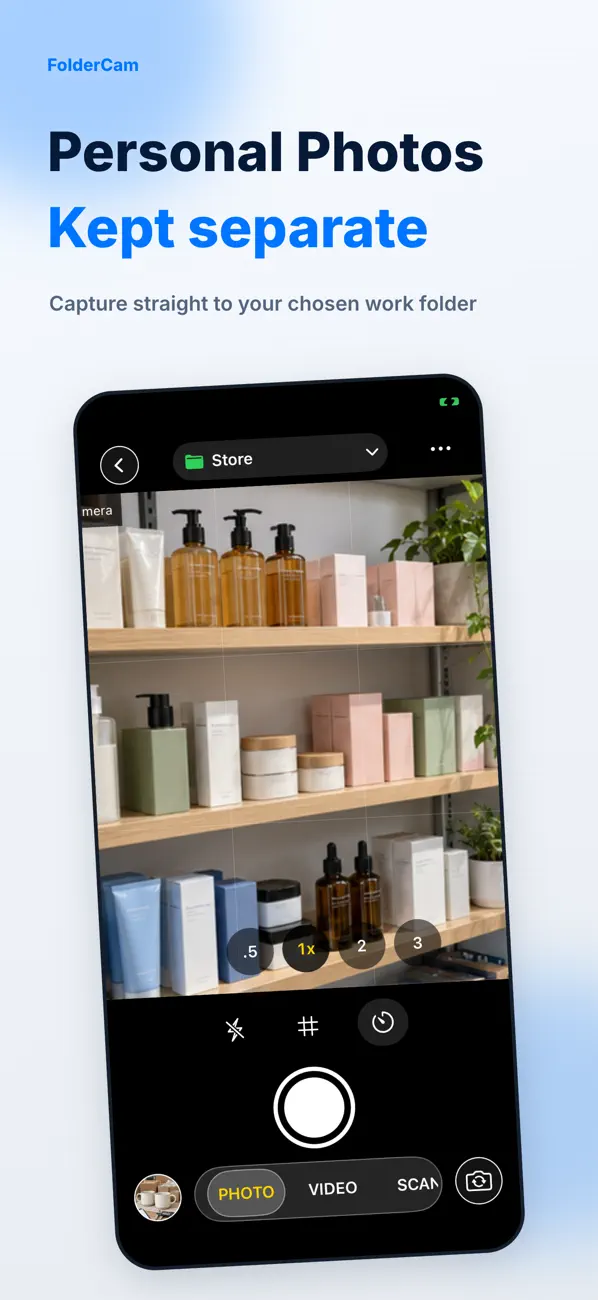
- Select the destination folder before taking a photo or video.
- Use document scanning for paperwork, and the timer or grid when useful.
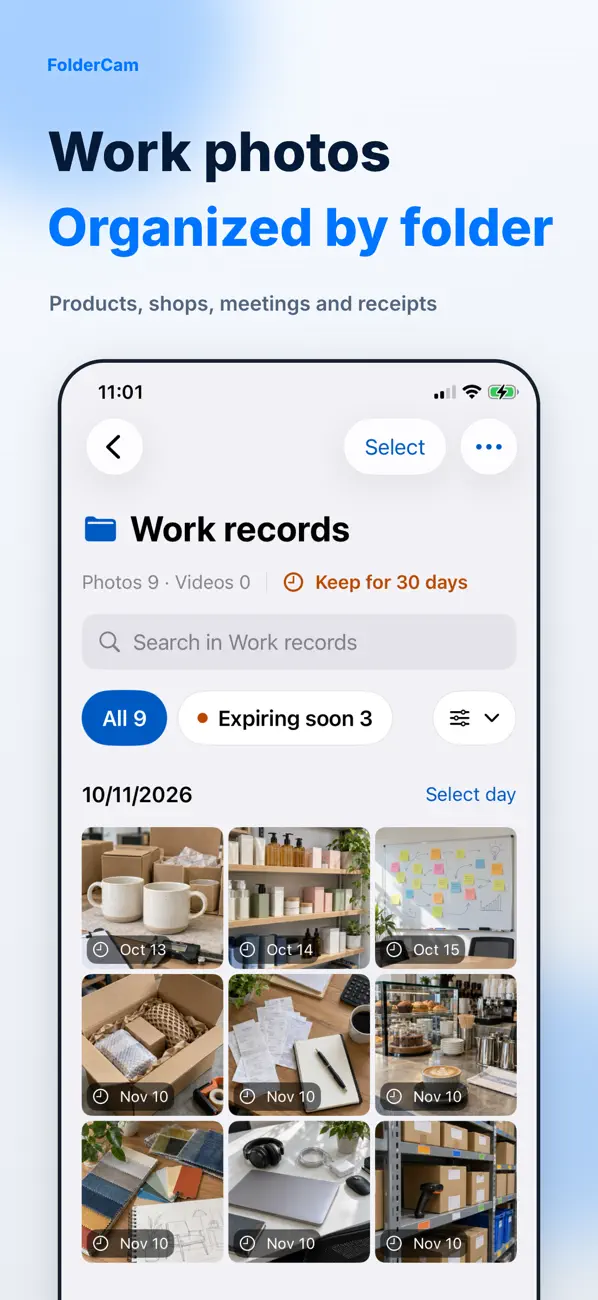
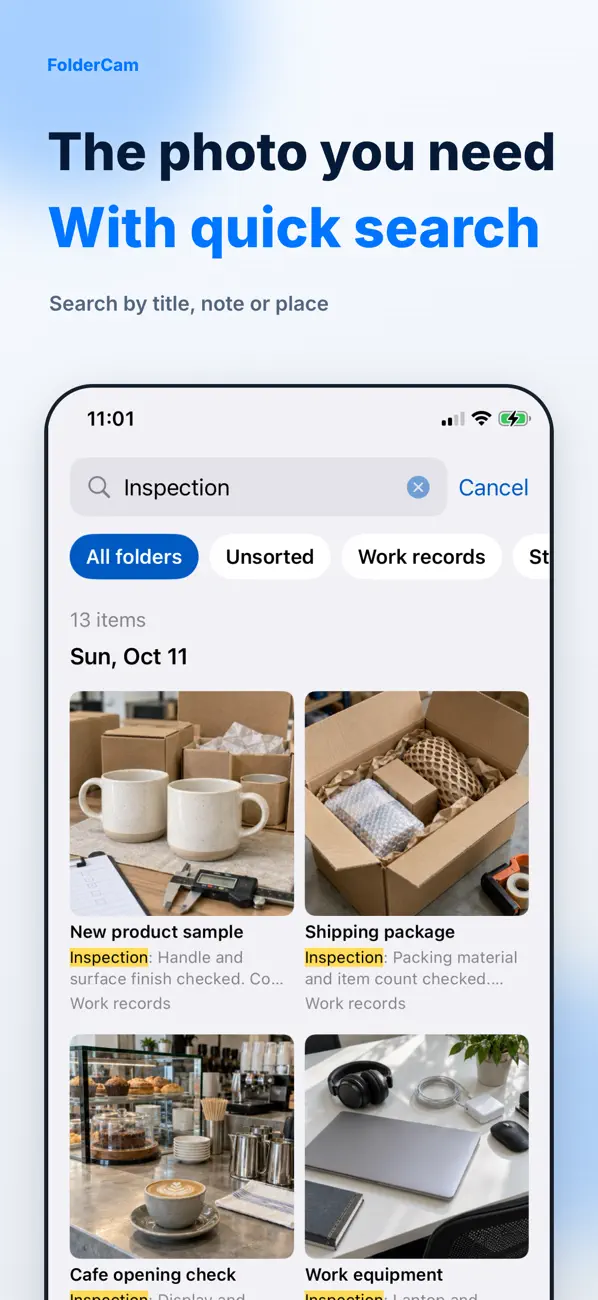
- Review the result in its folder and use titles, notes or places to make it easier to find.
Find and export captures
Select multiple items to move, share or delete them. Captures are not automatically added to personal Photos: export the items you want to keep there. Cloud/Files and ZIP export are among the Premium features.
Retention and deletion
The default is to keep captures until you delete them. An optional retention period applies to new captures, and expired items can be removed when the app opens. Change an item to Keep before it expires. Signing in alone does not back up photos.
If a capture is missing
Check the selected folder and search filters first. If a capture is absent from Photos, check whether you exported it from FolderCam. Before uninstalling, export important captures and confirm they open in another app.
Official app previews
These images come from the public App Store listing. Screens can differ by language, device and app version.
Common questions
Can I capture photos for free?
Basic capture, date stamps, standard retention, export to Photos and direct sharing are available. Check the purchase screen for current Premium features, including unlimited folders, and pricing.
Are photos uploaded automatically?
Do not assume automatic upload. Explicitly select a destination when exporting or sharing.
Does your screen look different?
The app changes over time. Include your app version and the steps you tried when contacting support. Do not send passwords, payment details or API keys.
dev@zrindy.comThis guide was translated from the developer’s source text. If a step is unclear, compare the original or contact support. Read the original